Follow these steps to get the Classroom Course Enrollment Summary from the VDSS External Domain.
Step 1: Go to the Reports Console
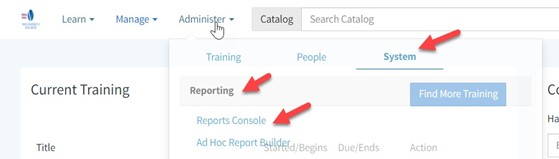
- From the Home screen, hover over Administer.
- Click System, then Reporting, and then Reports Console.
Step 2: Search for the Report
- In the search box, type Progress.
- From the results, select Classroom Course Enrollment Summary.
Step 3: Choose Your Organization
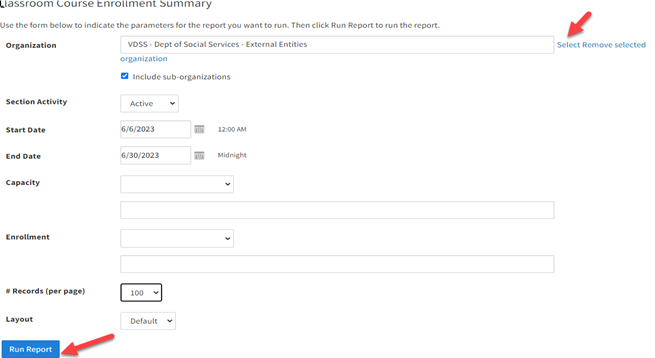
- Click Select next to the Organization field.
- In the pop-up box, search for and select Social Services External.
- If you want to include sub-organizations, check the box for that option.
Step 4: Set Parameters and Run
- Enter your report parameters.
- Click Run Report.
 / Virginia የመማሪያ ማዕከል / የቪሲኤልን አጠቃቀም በተመለከተ ጠቃሚ ምክሮች / የሪፖርት ማድረጊያ ሚና / የምዝገባ ሪፖርትን እንዴት መሙላት እንደሚቻል





 የአካባቢዬን ክፍል ፈልግ